Editor menu guide
Demo 0.8.0 uses a left sidebar. Move between world records, story editing, and a preview of the same project.
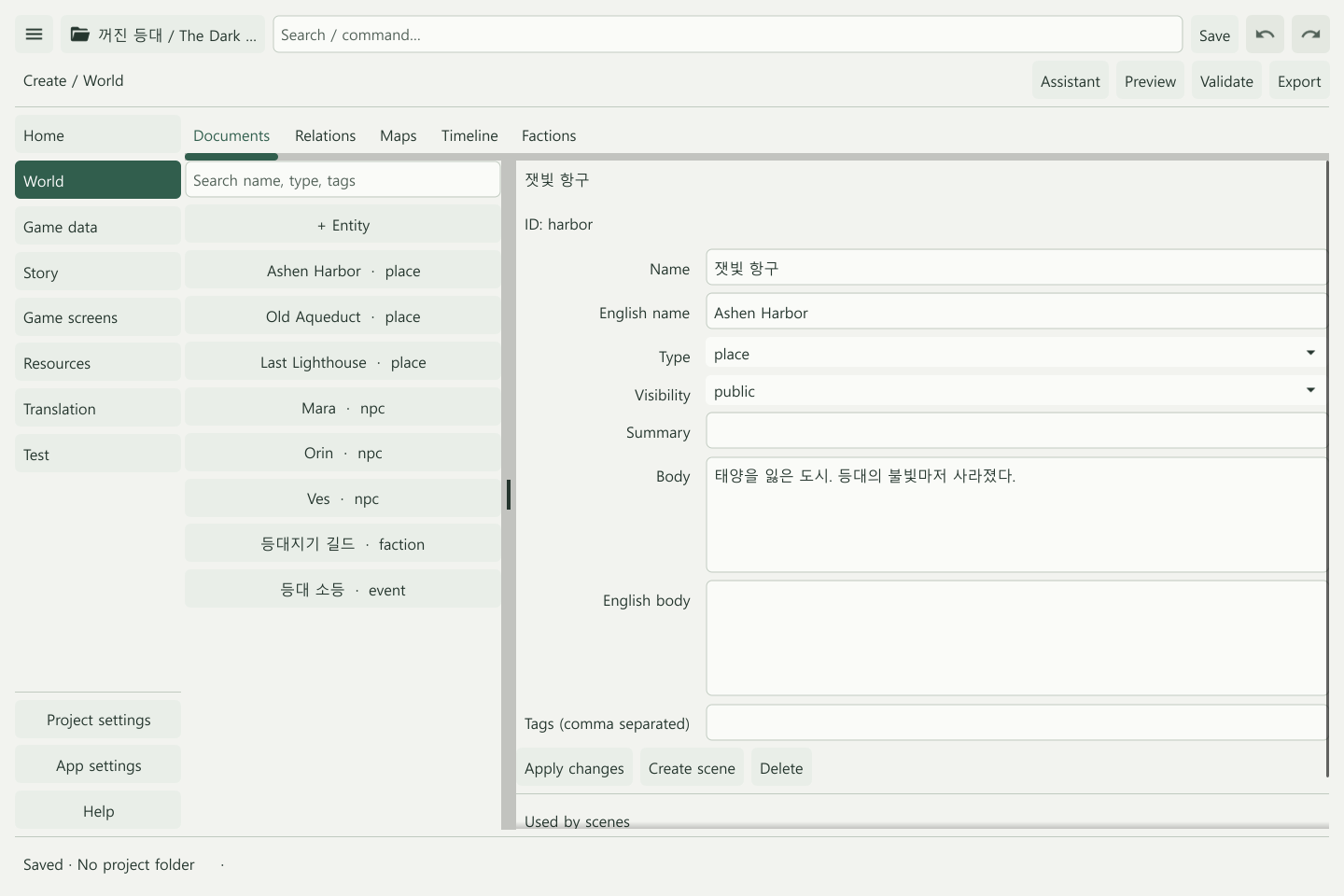
Creation menus
| Menu | What it contains | Guide |
|---|---|---|
| Home | Resume a world record or scene; open starter templates | Quick start |
| World | Documents, relations, maps, timeline, and factions | World building |
| Game data | Characters, items, quests, abilities, resources, and combat | Game data |
| Story | Scene text, choices, conditions, checks, and branches | Scenes and actions |
| Game screens | Links to gameplay preview, scenes, artwork, and chat settings | Game screens |
| Resources | Project assets, bundled images, and components | Starter content · Components |
| Translation | Korean/English content and review | Translation |
| Test | Preview and initial state, validation, and online connection tests | Play and export |
Relations, Maps, Timeline, and Factions are tabs inside World. Use the top search field to jump to a menu, world record, or scene.
Project settings and app settings
Project settings contains General, Version control, Plugins, Online & operations, Language & content, LLM policy, and Build & publish. These settings belong to the game and its team.
App settings contains Appearance, App language, Connections, and Help for this device. Change the editor language under App settings → App language; edit game text in Translation. Back to creation returns to your previous workspace.
Common actions
| Location | Actions |
|---|---|
| Project name | New project, Starter Templates, Open project, Save as, Recover |
| Save / Undo / Redo | Write applied changes to disk or undo an edit |
| Search / command | Find menus, world records, and scenes |
| Assistant | Request and review changes for the current task |
| Preview / Validate / Export | Test choices and branches, then build a game package |
Use Apply or Apply changes in a form before choosing Save. Drafts survive navigation to settings, but navigation does not apply or save them.
A useful first route
Project settings → World → Story → any needed Game data → Validate, Preview, Export.
Start with a short story. Add maps, relationships, and rules when you need them.