Quick start
Open a short sample, change one scene, and play through the result.
Run the editor
Extract the entire demo ZIP and run maker.exe. Keep the matching player.exe for exports. No development tools are required.
Start from a template
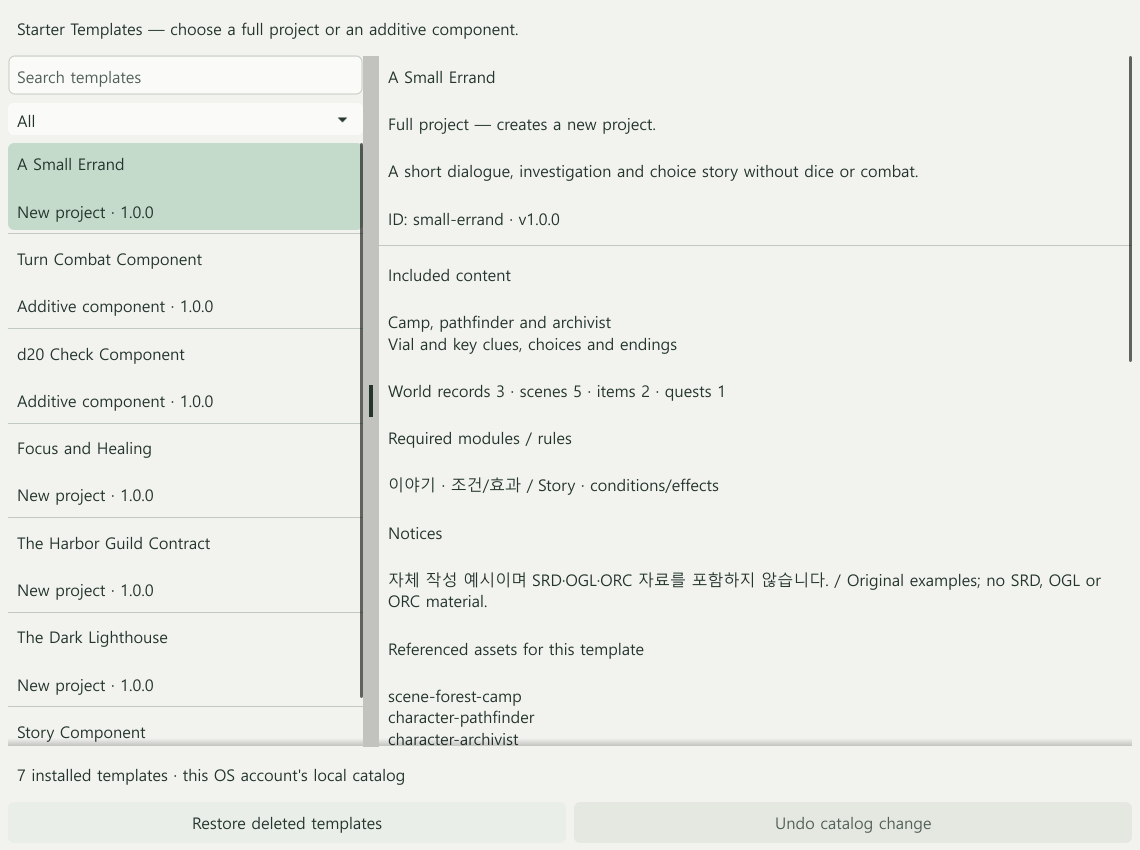
- Choose Starter Templates on the launcher.
- Select A Small Errand, a short story about conversation and choices without dice or combat. Choose The Dark Lighthouse if you want to explore checks and combat.
- Review the contents and optional artwork, then create the project.
- Choose Save and select a project folder.
Edit and play a scene
- Open Story in the sidebar and select a scene.
- Change its text or choice labels, then Apply and Save.
- Choose Validate to check references and branches.
- Choose Preview, set the initial state, and try the choices.
- Use Export to select a play mode and output folder.
Start with a blank project
Choose New project → Blank project. No rules, characters, or images are added automatically. Set the title and content version under Project settings → General, then save.
Write a place or person in World and make your first scene in Story. Resources → Components can add story, d20, or combat content. If the project already has a starting scene, connect the new scenes with your own choices.
Apply and save
Apply changes the project; Save writes it to disk. Undo and Redo reverse applied edits.
Click the project name at the top left for Open project or Save as while editing.
Editor menus · Starter images · Play and export · Troubleshooting